【Completely Free】How to Safely Add Watermarks to Photos Without Server Uploads
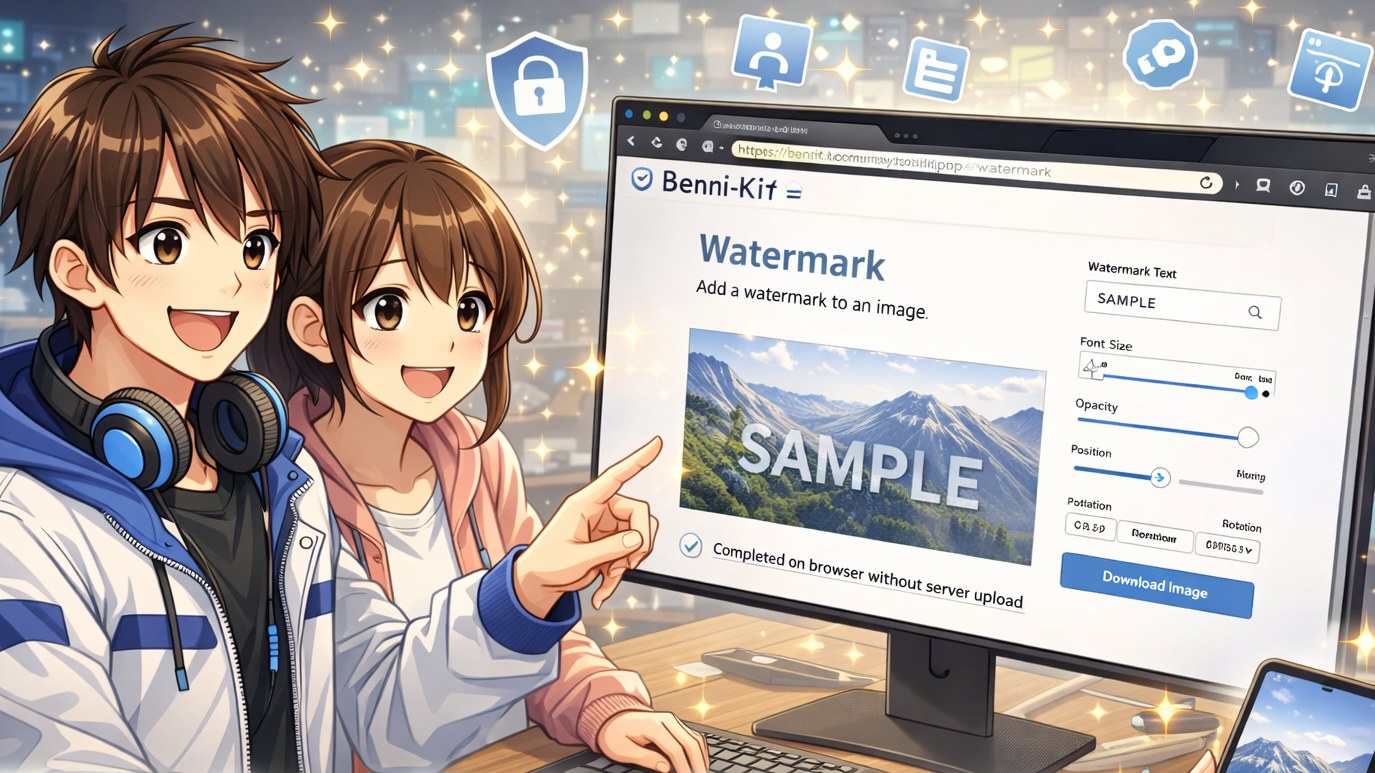

1. Introduction: The “Blind Spot” in Choosing Image Processing Tools and Development Background
There are numerous scenarios where you might want to add a “watermark” to images: preventing unauthorized reposting of blog content, displaying your brand on social media, or protecting real estate property or e-commerce product images. However, from an engineer's perspective, using services that appear when you casually search for “free online tools” carries significant risks.
Many online tools operate as “black box” systems, requiring you to upload your image to their servers for processing. Users have no way to verify whether their images are truly deleted after processing or if they're being stored as machine learning data or inappropriate logs.
“We don't want you to risk your confidential information and privacy in exchange for convenience.” Driven by this strong concern, I built my own tool with **“no server uploads”** as an absolute requirement. I present the cleanest, safest solution: one that completes all processing entirely within your local browser.
2. Core Benefits: Why Browser-Only “No Server Upload” is the Strongest Approach
The security this tool provides isn't just an “operational promise”—it's based on a **“physically leak-proof structure”**.
1. Data Non-Disclosure (Utilizing Canvas API): Technically, it leverages the browser-standard “Canvas API” and “OffscreenCanvas.” This mechanism uses the user's own device (PC or smartphone) as the computational resource for processing. Since no network communication occurs externally during image processing, editing is possible safely without any server transmission.
2. Thorough Privacy Protection (Automatic EXIF Data Removal): Photos contain “EXIF data” such as GPS location and capture timestamps. This tool automatically strips (deletes) this metadata during the redrawing process. This provides a significant privacy benefit by preventing unintended identification of home addresses. *Please note this specification if you require professional-grade photo data retention.
3. Volatile Memory for Secure Usage: No user registration or login is required. Since it operates without server uploads, there is zero risk of personal data collection. Furthermore, all data used for processing is completely erased from memory the moment the browser page is closed, leaving no trace anywhere.
3. Practical Guide: Using the Watermark Feature Without Server Uploads
This tool's watermark feature offers a simple yet powerful deterrent.
* Free placement of Japanese text: You can directly input Japanese text like “Confidential,” “SAMPLE,” or “Unauthorized Reproduction Prohibited.” Fonts are rendered based on the environment installed on your device, such as “Noto Sans JP.”
* AI removal countermeasures using “Tile Mode”: Placing a watermark in just one central location can be easily removed by recent AI restoration techniques or cropping. Using the “Tile Mode” to cover the entire screen significantly hinders image restoration and provides a strong deterrent against unauthorized use.
* Detailed parameter adjustments:
* Angle: Generally, a setting between “-30° to -45°” is recommended as it maintains visibility while making it harder to circumvent via cropping.
* Opacity: Specified in rgba format (e.g., rgba(0,0,0,0.3)). Setting it around 0.2 to 0.4 ensures the original image's appearance isn't compromised while making the watermark clearly recognizable.
* Quality Preservation and Format: For JPEG output, it is re-encoded at 92% quality—the optimal setting balancing visibility and file size. PNG files retain their quality without loss, but due to browser specifications, they tend to result in larger file sizes. Therefore, we recommend combining this with the WebP conversion described later. Naturally, no server uploads are required throughout all these processes.
4. Comparative Advantages: Existing Tools vs. Our Custom Tool
We've summarized the key differences between common online tools and our newly provided ‘benri-kit’ in a comparison table.
| Comparison Item | Common Free Online Tools | benri-kit |
| Server Upload | Required (Upload mandatory) | None (Completed entirely within browser) |
| Account Registration | Often required | Not required |
| Forced Logo Insertion | Service name logo may be added | None (Absolutely none) |
| Security | Depends on operator's management (Unclear) | Physically impossible to leak (Zero communication) |
| Cost | Free (with restrictions) ~ Paid | Completely free |
5. More Than Just Watermarks! Additional Features Without Server Upload
We provide all these convenient features for even smoother batch image processing—without requiring server upload.
* Compression & Conversion (WebP Recommended): Browser-based PNG output can be poorly optimized and bloated. Setting output to “WebP” format dramatically reduces file size compared to JPEG or PNG while maintaining image quality.
* Cropping (Social Media Optimization): Includes presets optimized for social media posting, like Instagram (1080×1080) and OGP (1200×600). Carefully select and crop each image individually.
* Batch Renaming & ZIP Download: Rename large numbers of files simultaneously via drag-and-drop. After processing, download all files compressed in a ZIP format, dramatically improving workflow efficiency when handling large volumes of property or product photos.
6. FAQ: Engineer Answers to Questions and Precautions About “No Server Upload”
Q. Can I use it on a smartphone?
A.Yes, as long as you have an environment where the latest browser runs, you can use it without server upload, just like on a PC.
Q. Is there a file size limit?
A.Since this tool uses your device's memory directly, it's extremely fast for files around 10MB. However, loading extremely large files exceeding 50MB in bulk may cause browser memory exhaustion, potentially crashing (force-closing) the tab. In such cases, please process them in smaller batches.
Q. Can the original image file be overwritten?
A.No. This tool operates on a “non-destructive editing” principle. Processing results are always saved as a “new file,” so there is no risk of overwriting the original image.
Q. Can it be used for commercial purposes or internal company operations?
A.Absolutely. Feel free to utilize it in any business scenario, such as real estate, e-commerce site management, or blog media.
7. Summary: Protecting Your Data with Technology
The everyday task of adding watermarks to images requires balancing “security” to protect valuable data with “convenience.” This tool, offering three key values—“free, no registration required, no server uploads”—is particularly effective in professional settings like these:
* Real Estate: Combining company name watermarks on property photos with bulk renaming.
* E-commerce shops: Inserting brand logos (text) into product images and WebP compression.
* Bloggers/Writers: Using tile-pattern watermarks to prevent unauthorized reposting.
As engineers, we guarantee your data privacy through technology. Experience secure image processing now via the link below.
[Official] Secure Watermark Creation Tool (No Server Upload)